
Your attendance, tasks, reminders and profile
You can see what the office sees about you, and that is deliberate. This chapter also covers the reminders you set for yourself, which are yours the way your own notebook is yours — never shown to the office, and never counted on their screens.
You can see what the office sees about you. That is deliberate.
Attendance
The Attendance tab shows your month as a calendar. Each day carries a mark — present, leave, weekly off, holiday, absent — and tapping a day opens it in full: your punches, the times, the hours, where you were.
Underneath, the month adds up: days present, days on leave, days from home, total hours.
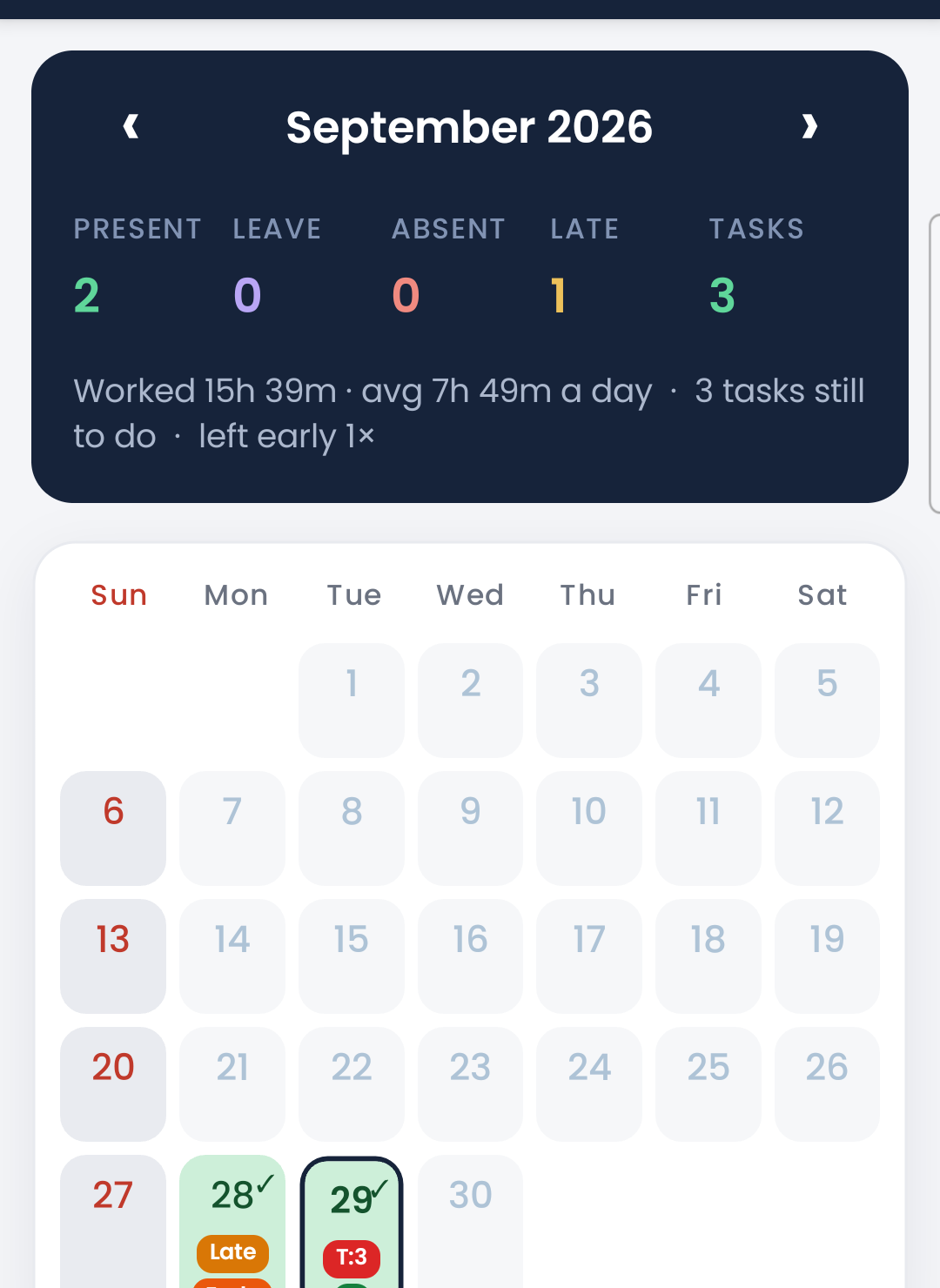
Check it occasionally. If something is wrong, the sooner it is raised the easier it is to sort out — a missing punch from last week is a conversation, one from three months ago is an argument.
Tasks
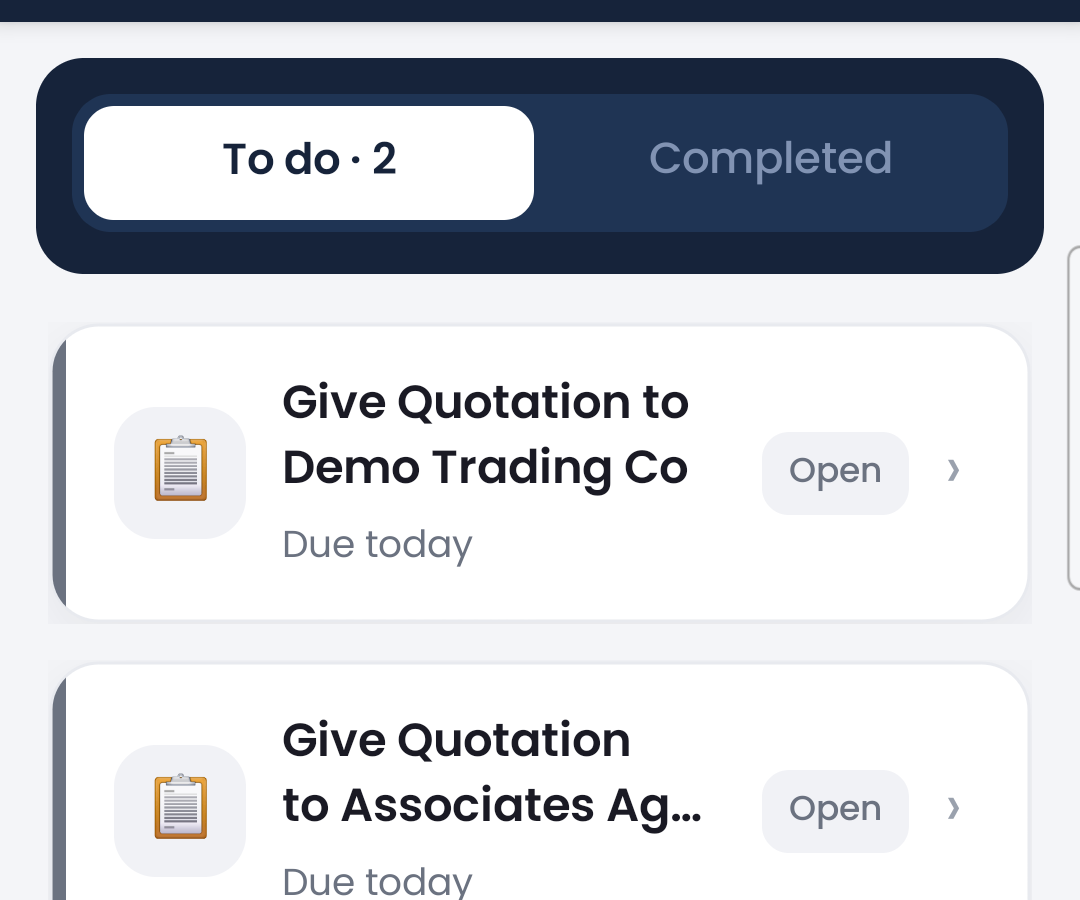
Work assigned to you, with a due date. Open one to see what is wanted, mark it done when it is, and attach proof if you are asked for it — photographs, a note, or a voice note where typing is awkward.
Completed tasks stay readable, with whatever you sent.
Reminders
Notes to yourself. Nobody assigns them, nobody is waiting on them, and the office cannot see them — they are yours the way your own notebook is yours.
Open them with the alarm clock in the title bar, beside the bell. A red number on it counts what is due today.

It opens on Today, which is where the value is: what is due now, and anything already past. This month is the second tab, for looking further ahead on purpose.
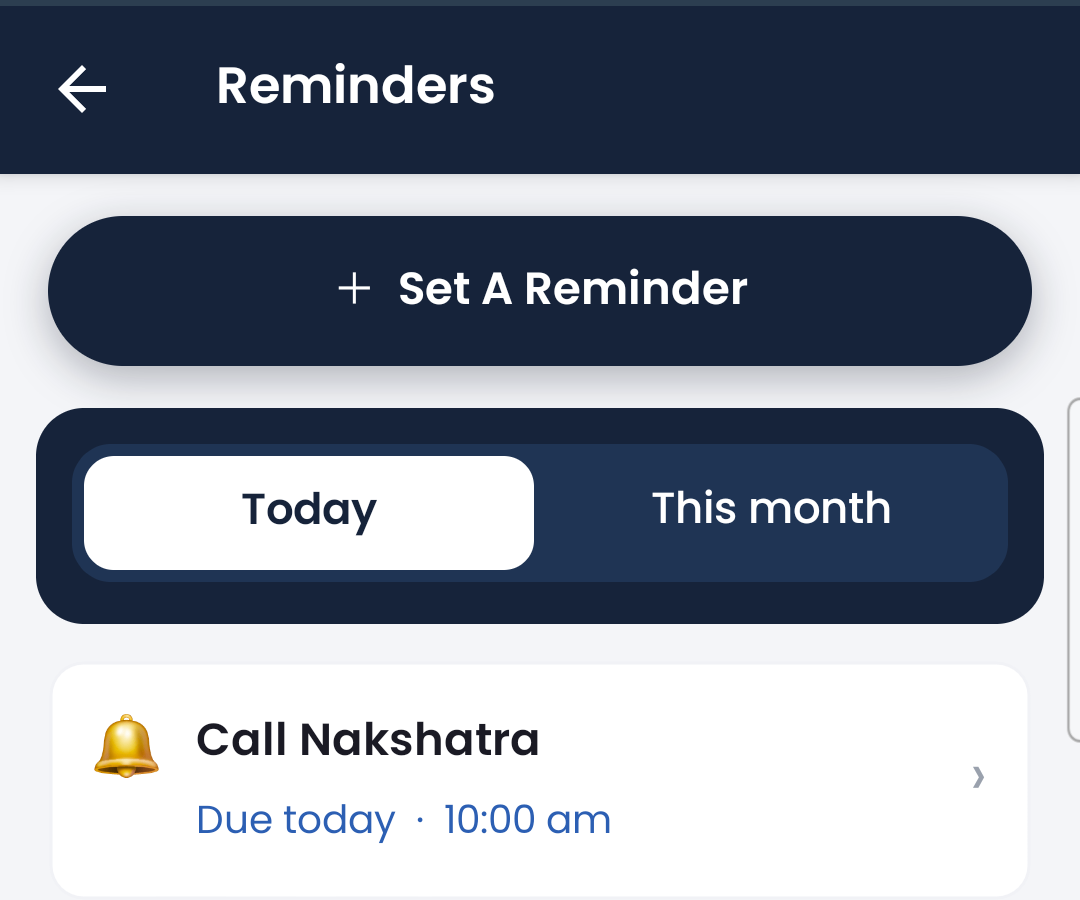
To set one, tap + Set A Reminder. A line is enough — "Call the bank". Then:
- Today or Tomorrow in one tap, or any date from the picker
- At a time, if it should interrupt you at a particular hour. Leave it off and it waits until you have punched in that day
- Repeat, for something that comes round every week or every month
Underneath, the card says back in one sentence exactly what will happen. Read that line before you save it — a reminder typed for the wrong hour is only ever caught by reading it back.
You get two notices: one the moment you set it, naming the thing and its time, and another when it falls due. The first exists so a wrong time is caught while there is still time to fix it.
Tap one in the list to mark it done, stop it repeating, or delete it.
Snoozing one
When a reminder arrives at a bad moment, the notification offers Snooze as well as dismissing it. It starts at five minutes from now — rounded up to the next five-minute mark, so it comes back at a clock time instead of at 10:43 — and +5 / −5 move it before you confirm.
Use it. Dismissing is the only other choice, and a dismissed reminder is a forgotten one.
Snoozed, done or overdue, a reminder you set for yourself is never shown to the office — not on their screens and not in their counts. A reminder they set for you is a different thing and says so on the row.
Notifications
The app tells you when:
- A leave or home-day request is decided
- A task is assigned to you or falls due
- A reminder you set comes round
- The office posts an announcement
Each kind sounds different, so you can tell what has arrived without taking the phone out:
| What arrived | What you hear |
|---|---|
| Approvals and notices | your phone's usual notification sound |
| Tasks | two notes, falling |
| Reminders | three notes, rising |
| Announcements | two short rings the same pitch |
They are also listed separately in your phone's own settings, under Settings → Apps → Attendance ATEASE → Notifications. So you can silence one kind and keep the rest — useful if announcements come often and you would rather read them when you choose.
Think before you silence Approvals, though. That is where the answer to your leave application arrives, and a silenced approval is one you find out about by asking.
Android switches off apps it thinks you are not using. On your phone: Settings → Apps → Attendance ATEASE → Battery, and set it to Unrestricted. Everything else is normal.
Announcements
Messages from the office — an early close, a holiday change, a policy. They stay in the app, so something read in a hurry can be read again.
Your profile
Your details as the office holds them: name, employee code, department, designation, date of joining, your organisation.
If something here is wrong, tell the office — you cannot change it yourself, and that is on purpose.
You can keep your emergency contact up to date, and you should. It is the number somebody would ring on the worst day of your working life, and it is the field most likely to be years out of date.
Documents
Documents your office has shared — policies, forms, circulars — and your own documents where they have been uploaded.
Privacy
The privacy notice is readable at any time from your profile. It explains what is recorded, what is not, how long it is kept, and how to ask for your records.
Your first stop for anything about your own records is your employer; they hold them, and they decide. If you cannot reach them, the notice gives an address you can write to.
Part of the Attendance ATEASE staff guide. Last reviewed 4 October 2026.
Try it free for 30 days